
On this page
Before you start
Step 1 of 5
Open rental reports
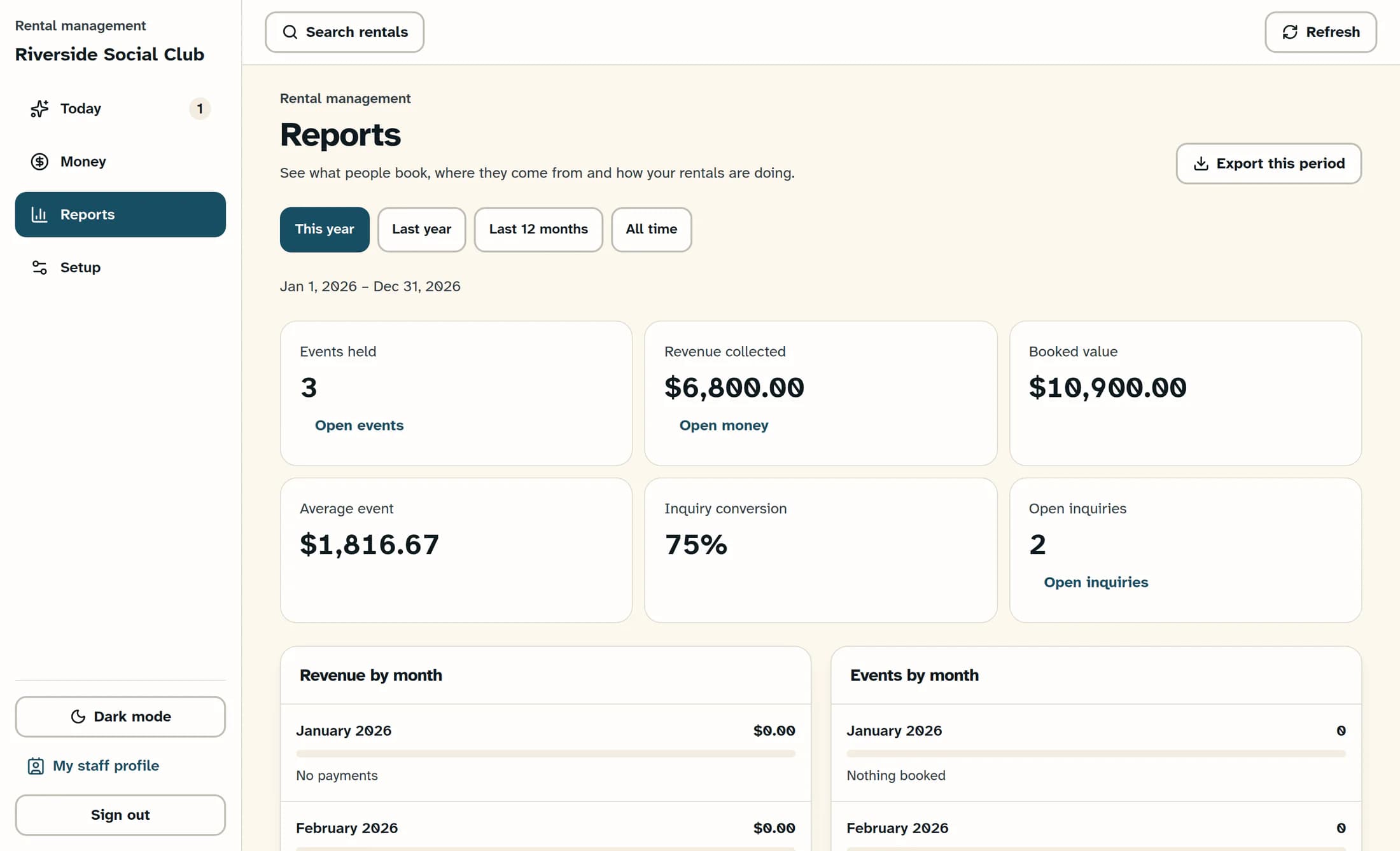
In Rental Management, select Reports. Check that you are viewing the intended club and let the report finish loading.
Step 2 of 5
Choose a report period
Use the period buttons to select This year, Last year, Last 12 months or All time. Check the date range shown underneath: This year includes the full calendar year, including upcoming events, and Last 12 months includes the current calendar month and the eleven preceding months.
Step 3 of 5
Read the headline totals
Compare Revenue collected with Booked value: revenue follows recorded payment dates, while booked value follows event dates and excludes cancelled or lost events. Events held counts those events dated today or earlier; it does not confirm that an event was completed.
Understand the other totals
- Average event uses events with a positive value.
- Inquiry conversion uses inquiries created in the selected period, excluding placeholders created by direct bookings.
- Open inquiries is the current open inquiry total, rather than a total limited to your selected period.
Step 4 of 5
Review trends and space use
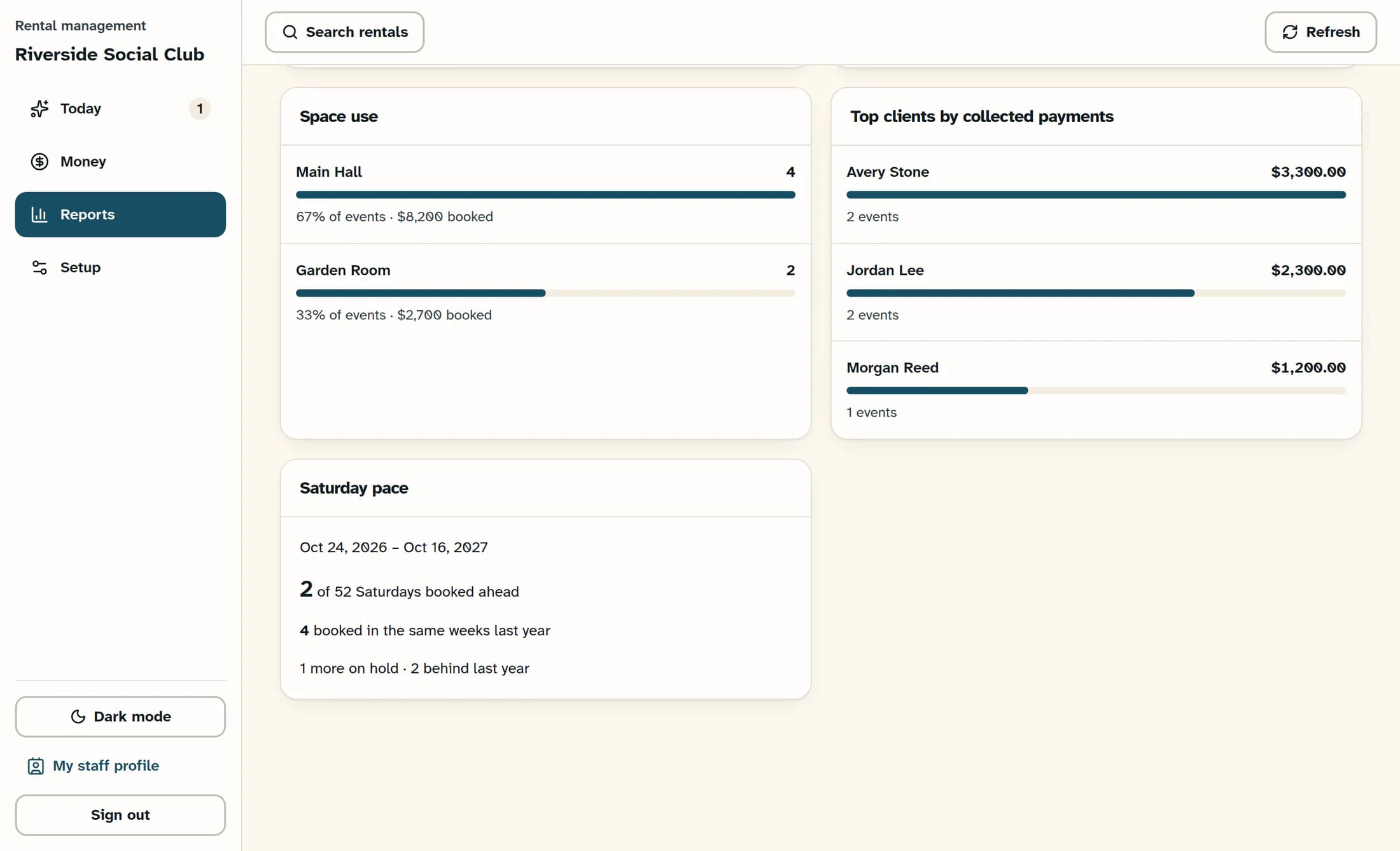
Scroll through the revenue and event charts, inquiry sources, event types and Top clients by collected payments. Read Space use as each space’s event count and share of events, rather than occupied hours or capacity; Saturday pace separately compares the next 52 Saturdays with the same weeks last year and shows holds separately.
Step 5 of 5
Export the events in this period
Return to the top and select Export this period, then check your browser’s downloads. The CSV contains the selected period’s event details, including client, space, stage, value, paid and balance; it does not export every chart or a payment ledger.
Check the data behind the report
Resolve missing data before relying on totals
If Some rental data is unavailable appears, select Refresh and resolve loading problems before relying on the totals. Missing data can make values incomplete or outdated.
Summary
You can now compare rental activity for a chosen period and use the event CSV for a closer review.
