
On this page
Before you start
Step 1 of 5
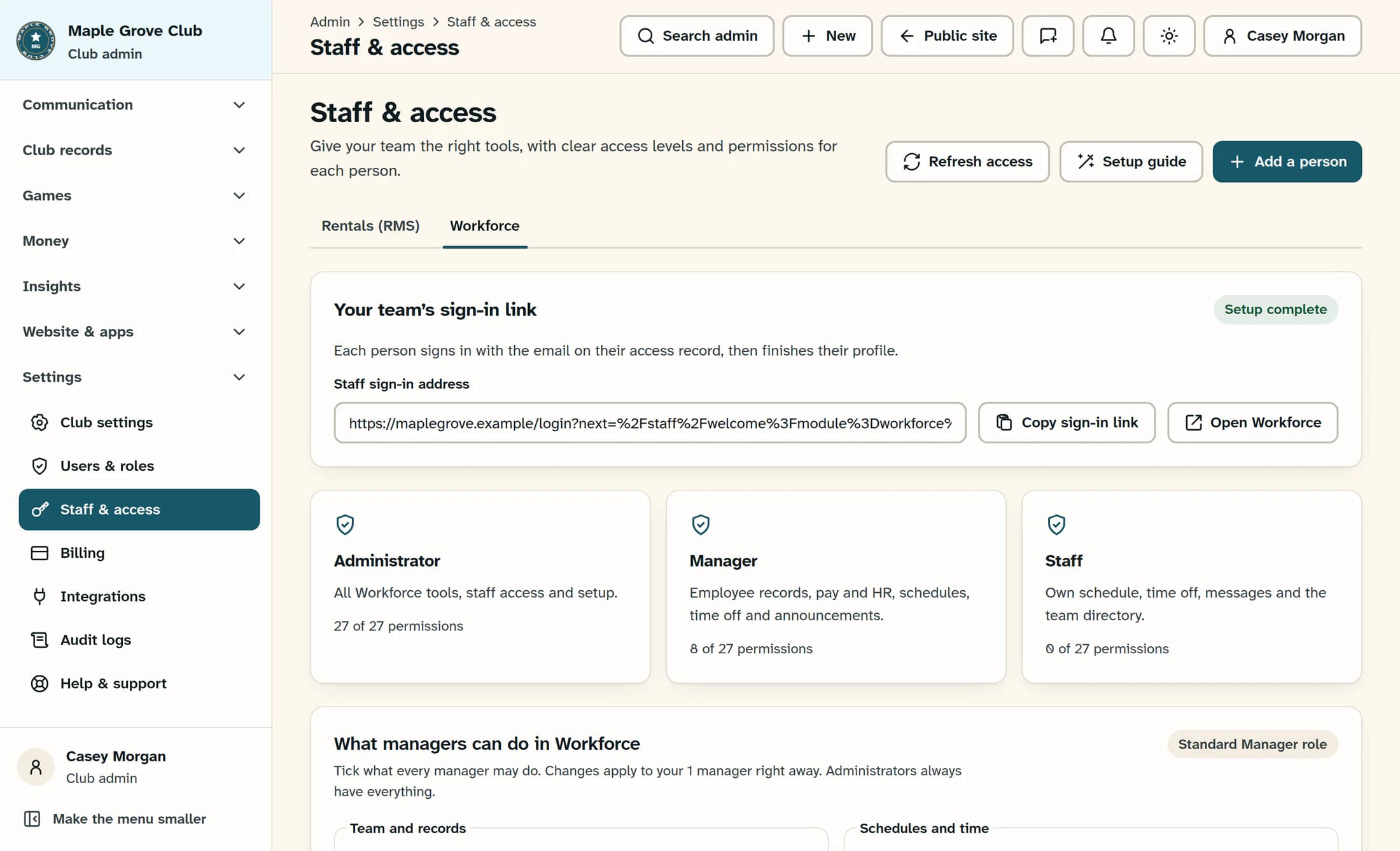
Open Staff & Access
In the admin sidebar, open Settings > Staff & Access, then select Workforce. For rental staff, select Rentals (RMS) instead; the remaining steps use that system’s access and sign-in link.
Step 2 of 5
Enter the person’s details
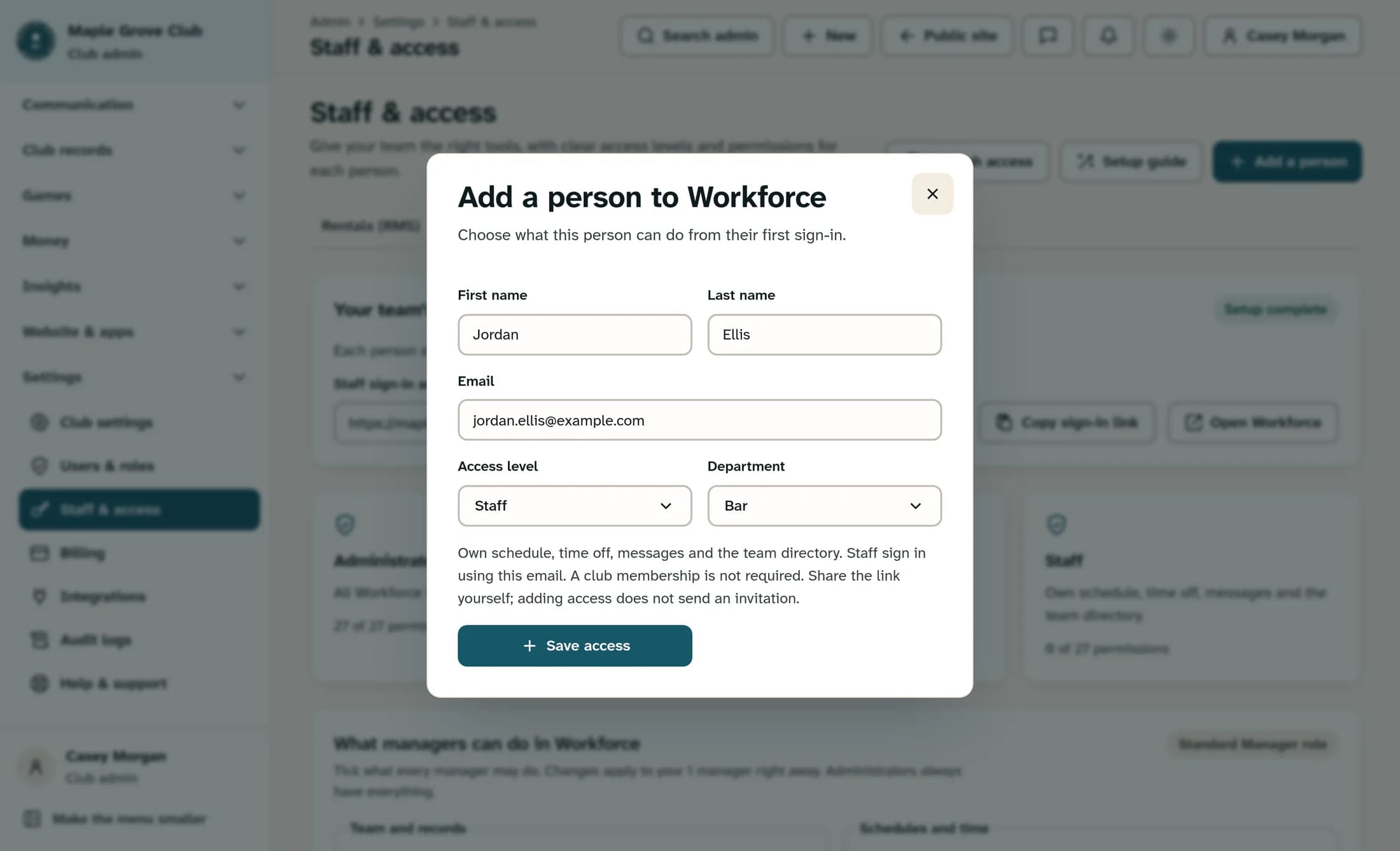
Select Add a person, then enter First name, Last name and Email. Check that the email is the one the person will use to sign in.
Step 3 of 5
Choose their access level
Choose Administrator, Manager or Staff under Access level, using the least access the person needs. For Workforce, also choose their Department; this field is not shown for Rentals.
What each access level includes
- Administrator has all tools in the selected system, including staff access and setup.
- Manager in Workforce covers employee records, pay and HR, schedules, time off and announcements. In Rentals, it covers bookings, proposals, contracts and finances.
- Staff in Workforce covers their own schedule, time off, messages and the team directory. In Rentals, it provides read access to rental operations.
- Your club may have changed the Manager role or a person’s individual permissions, so these role summaries are a starting point.
Step 4 of 5
Save access
Select Save access and wait for “Access saved. Share the sign-in link; no invitation email was sent.” Saving access does not assign a password or complete the person’s first sign-in.
Step 5 of 5
Copy and share the sign-in link
Under Your team’s sign-in link, select Copy sign-in link for the system you just updated. Share it yourself through your usual email or messaging channel, and tell the person to sign in with the exact email on their access record, then finish their profile.
Tips
Outcome
The person has access to the selected system and a sign-in link you have shared with them. Their first sign-in and profile completion are still theirs to finish.
Troubleshooting
- Email already listed: use Search people to find the existing person, then Manage access to update their record instead of adding a duplicate.
- Inactive login or employee record: review the existing record with a club administrator and deliberately reactivate it where appropriate. Adding someone again is not a substitute for reactivation.
- Missing permissions or unavailable staff access: confirm that you are in the right club and ask a club administrator to check your permission to manage staff in that system.
- Clipboard unavailable: select and copy the address in Staff sign-in address, then share it manually.
- Change accepted but list not loaded: select Refresh access before making another change. Check the refreshed list before trying to add the person again.
About this guide
Each illustration is a source-based reconstruction with fictional club and staff details.
The screens in this guide show example clubs and people. Your club's name, colours and some labels may look different.
