
On this page
Before you start
- You need permission to manage staff access for the club and selected system. That system must already be turned on.
- Check the person’s name and email before changing access. Disabling staff access does not delete the person, change their employment status, or change their club-wide role.
- Keep another active system administrator in place. You cannot disable the last active administrator for that system.
Step 1 of 5
Open the right staff system
In the admin menu, open Settings > Staff & Access. Select Rentals (RMS) or Workforce for the access you want to change.
Step 2 of 5
Find the person
In People, enter their name or email in Search people, which shows Name or email. Use Everyone, Signed in, Awaiting sign-in, or Disabled to narrow the list, then select Manage access beside the right person.
Step 3 of 5
Choose to disable access
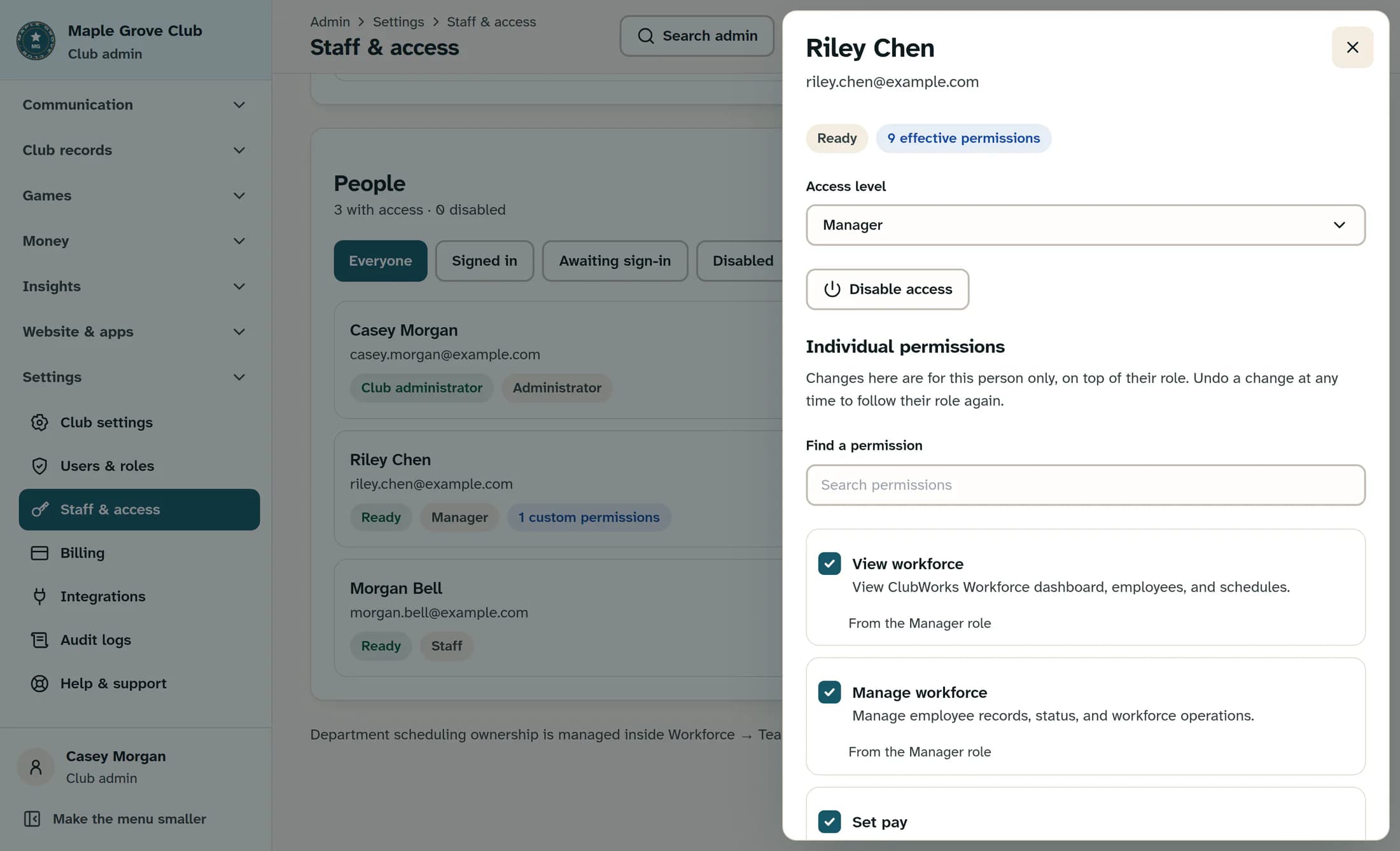
Check the name and email at the top of the person’s panel. For someone whose access is active, select Disable access.
Step 4 of 5
Confirm the change
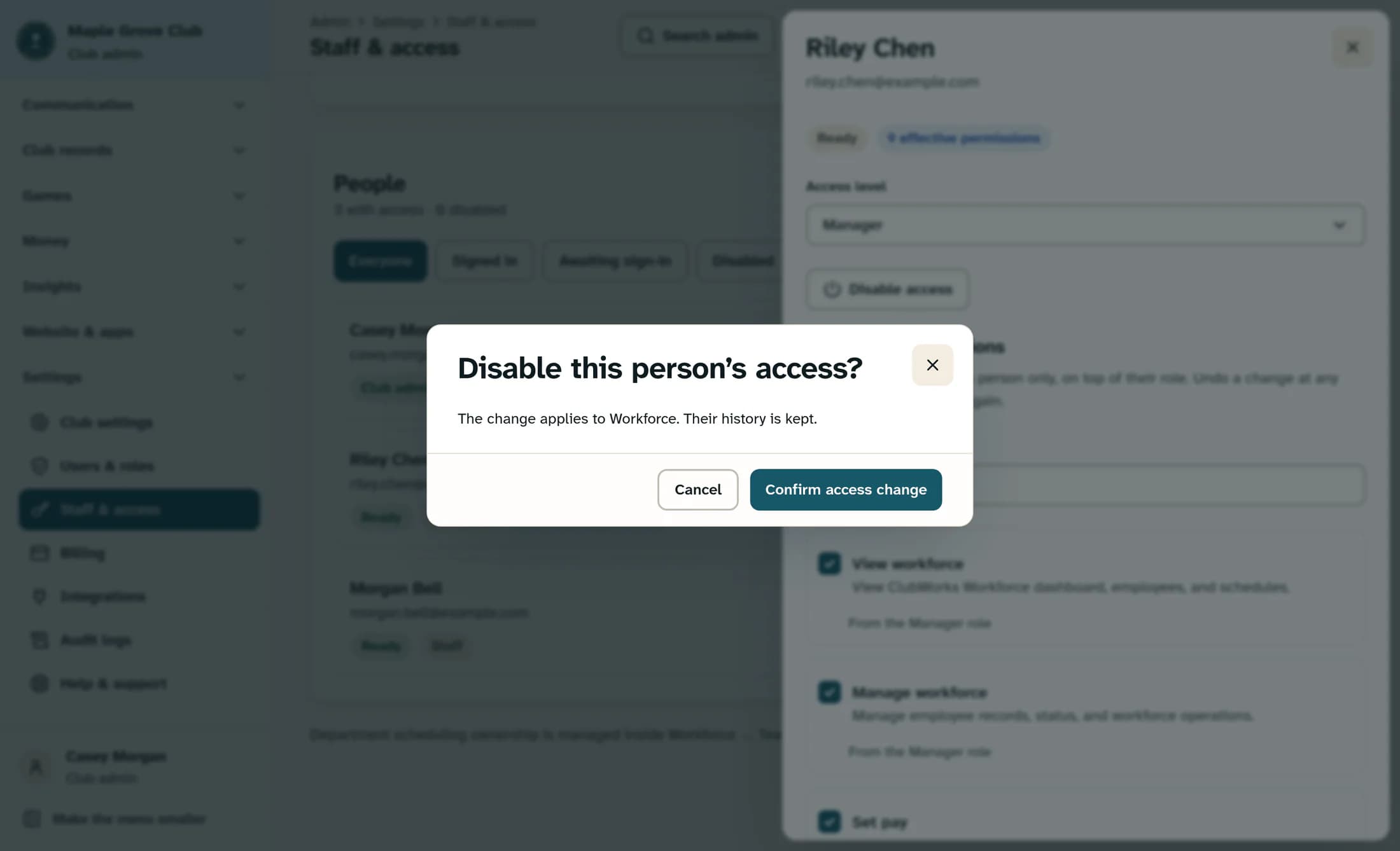
In Disable this person’s access?, check the system named in the message. Select Confirm access change to proceed, or Cancel to leave access as it is.
Step 5 of 5
Restore access when needed
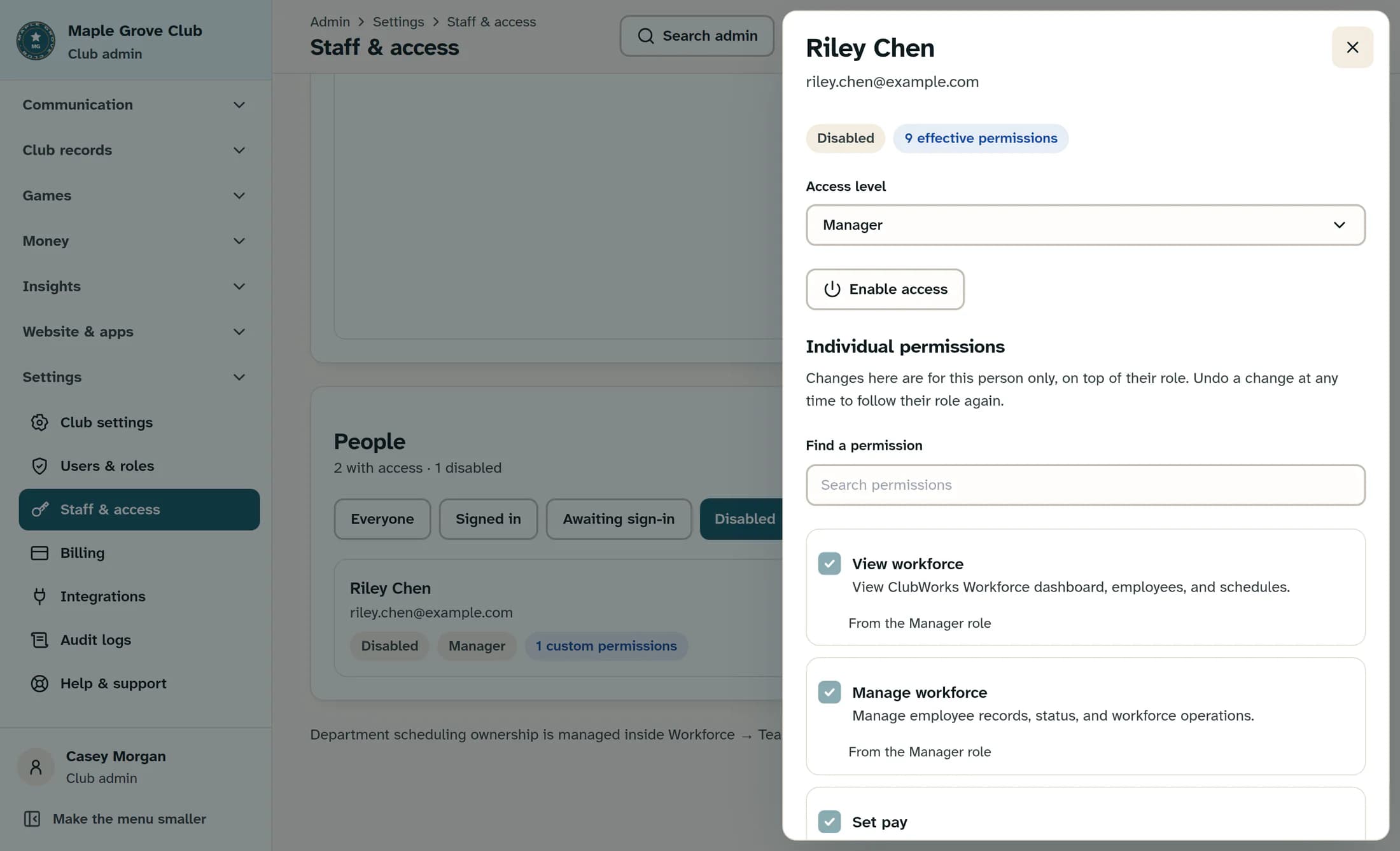
To restore access later, find the person using Disabled and open Manage access. Select Enable access, then select Confirm access change in Enable this person’s access?. After access is restored, review their saved access level and individual permission changes.
What happens next
After disabling access, you’ll see “Access disabled. Their history is kept.” The person appears as Disabled, and their individual permission controls are unavailable while access is disabled. Restoring access shows “Access enabled.” and keeps their existing access level and individual permission changes; it does not reactivate a separately inactive login or Workforce employee record.
If you can’t change access
- If Disable access is unavailable for the last active system administrator, assign another system administrator before trying again.
- Club administrators hold all permissions. Manage their club role in Users & roles instead of using this staff access toggle.
- A Workforce employee who appears only from the Team roster has no staff access toggle yet. Choosing an access level creates their staff record; employment status is managed in Workforce.
- If a save was accepted but the updated list could not load, use Close at the top of the person’s panel, then select Refresh access. Check the person’s current status before retrying the change.
- If someone still cannot use the system after access is restored, check whether their login or Workforce employee record is separately inactive.
About this guide
This guide was checked against ClubWorks source. The illustrations are source-based reconstructions with fictional Maple Grove Club and Riley Chen details. Your club’s colors and available options may differ.
The screens in this guide show example clubs and people. Your club's name, colours and some labels may look different.
